

Find SM-DP+ Address iPhone: Causes and Solutions

Simon Muller
Posted on September 22, 2026

Find SM-DP+ Address iPhone: Causes and Solutions
You land at a foreign airport, try to scan your eSIM QR code, and it fails. Your iPhone asks for an SM-DP+ address, leaving you stranded without data. Skip the manual typing: a GoMoWorld eSIM installs directly via our app with zero QR codes—10GB for 15 days at €10.99.
Why Does This Problem Occur?
An SM-DP+ (Subscription Manager Data Preparation) address is a secure server link. It tells your iPhone exactly where to download your carrier’s eSIM profile. When everything works, scanning a QR code processes this address automatically in the background.
The system breaks down when you cannot scan the code. This happens if you receive the QR code on the same iPhone you need to activate it on. You cannot scan your own screen. The process also fails if your camera lens is scratched, or if the QR code image is compressed and blurry.
When the automated scan fails, iOS forces you into manual mode. Your phone prompts you for the server details. You suddenly find yourself searching for "how to find SM-DP+ address iPhone" because your provider buried this information at the bottom of a confusing confirmation email.
This manual fallback is a known flaw with standard eSIM providers. It creates unnecessary friction right when you need connectivity the most. For a deeper look into why these server addresses fail to communicate with your device, read our guide on the SM-DP+ activation server.
Quick Fix (Solves 80% of Cases)
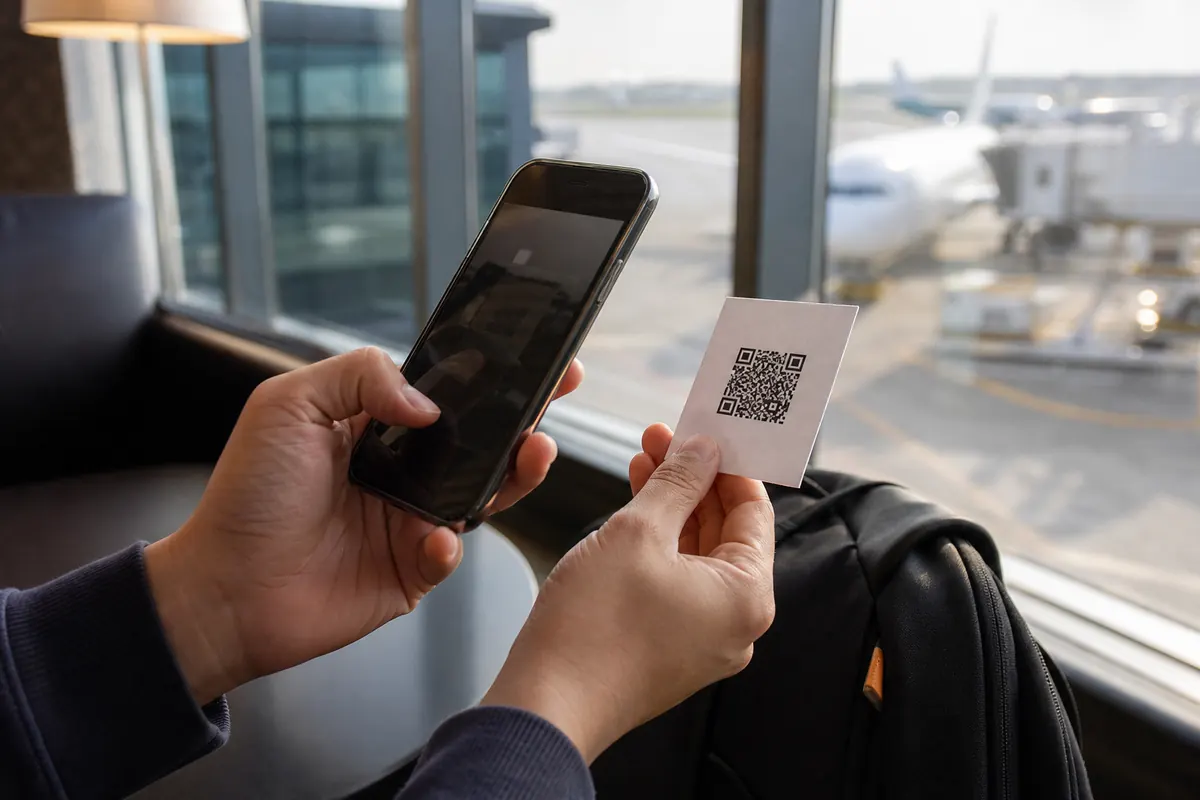
You can bypass the QR code scanner by entering the server credentials directly into your iPhone settings. You need two pieces of information from your provider: the SM-DP+ address and the Activation Code. These are different from your ICCID, the serial number printed on a physical SIM.
- Open the eSIM confirmation email from your carrier.
- Scroll past the QR code image. Look for a section titled "Manual Installation" or "Manual Entry".
- Copy the SM-DP+ address. It usually looks like a web URL (e.g., rsp.provider.com or smdp.io).
- Copy the Activation Code. This is a long string of letters and numbers.
- On your iPhone, go to Settings > Cellular (or Mobile Data).
- Tap Add eSIM or Add Cellular Plan.
- Tap Use QR Code.
- Tap Enter Details Manually at the bottom of the screen.
- Paste the SM-DP+ address into the first field.
- Paste the Activation Code into the second field.
- Leave the Confirmation Code blank unless your carrier explicitly provided one.
- Tap Next to download the profile.
If your iPhone accepts the address but the profile refuses to download, you might be dealing with a hardware conflict. Check our troubleshooting steps for the symptoms of a damaged SIM to rule out physical SIM tray interference.
Advanced Solutions
Sometimes, entering the correct SM-DP+ address still results in an "Unable to Complete Cellular Change" error. Here is how to force the installation through.
Connect to a Stable Network
Your iPhone requires an active internet connection to contact the SM-DP+ server and download the eSIM profile. Public airport Wi-Fi networks often have captive portals or strict firewalls that block these secure server requests. Disconnect from the airport Wi-Fi. Connect to a secure network, or use a travel companion's mobile hotspot to perform the installation.
Check for Carrier Locks
A locked iPhone will reject any third-party SM-DP+ address. Go to Settings > General > About. Scroll down to Carrier Lock. It must say "No SIM restrictions". If it says "SIM locked", your device is tied to your home carrier. You cannot install a travel eSIM until your home carrier unlocks the phone. If the installation succeeds but you get zero signal, review when your phone shows no SIM.
Disable Your VPN
VPNs route your internet traffic through external servers. This masks your location and can trigger security protocols on the SM-DP+ server, causing it to reject your iPhone's download request. Go to Settings > VPN and toggle the status to Not Connected. Try entering the manual details again.
Update iOS and Clear Old Profiles
Outdated software struggles with modern eSIM provisioning. Go to Settings > General > Software Update and install pending updates. Additionally, iPhones have a limit on how many eSIM profiles they can store. Go to Settings > Cellular and delete old, expired travel eSIMs to free up memory. If your data still refuses to route correctly after a successful install, check controlling background app data.
Prevention

The most effective way to fix manual SM-DP+ entry issues is to avoid them entirely. Traditional carriers and standard eSIM providers still rely on outdated QR codes. This forces you to print documents, use a second screen, or copy-paste complex server addresses while standing in a busy airport.
A GoMoWorld eSIM solves this upfront. Installation happens 100% via the GoMoWorld app. There is NO QR code. There is no manual SM-DP+ address to type. You download the app, select your destination, and tap to install the profile directly into your iPhone's cellular settings.
Activation is entirely manual. You tap "Start" in the app only when you are ready to use your data. Your plans NEVER expire until activated. You can buy your plan weeks in advance and activate it the moment you land.
GoMoWorld provides a prepay, data-only service. You face zero overage fees and no surprise roaming bills. You keep your home number active for calls and texts, using your GoMoWorld data to power your apps. Hotspot is included on all plans, allowing you to share your connection. Want to keep your chats going? Read about WhatsApp data usage.
| Provider Setup | Installation Method | Roaming Risk | Estimated Price |
|---|---|---|---|
| AT&T / Verizon | Physical SIM / Call Support | High ($15/day) | ~$15/day |
| Standard eSIM | QR Code / Manual SM-DP+ | Medium | Varies |
| GoMoWorld eSIM | 100% In-App (No QR) | None (Prepaid) | €10.99 (15 days, 10GB) |
Stop fighting with manual server addresses. Get your data sorted before you fly with a GoMoWorld eSIM →.
FAQ
Where do I find the SM-DP+ address on my iPhone?
You do not find the SM-DP+ address natively inside your iPhone settings. Your eSIM provider must supply this address to you, usually in your purchase confirmation email. You then paste it into Settings > Cellular > Add eSIM > Enter Details Manually.
Where can I find the Lycamobile SM-DP+ address?
When you purchase an eSIM from Lycamobile, they send an email containing a QR code. Scroll down in that same email to find the manual installation section, which contains the specific SM-DP+ address and activation code for your profile.
Where do I enter the SM-DP+ address?
On your iPhone, open Settings and tap Cellular (or Mobile Data). Tap Add eSIM, then select Use QR Code. At the bottom of the camera screen, tap Enter Details Manually. Paste your SM-DP+ address and activation code into the provided fields.


Similar articles

SM-DP+ Address: Complete Troubleshooting Guide

WhatsApp While Traveling: Free or Paid? How to Use It

Data Apps Abroad: Comprehensive Troubleshooting Guide
No SIM Available: Causes and Solutions

Hear from our Happy Travelers
4.7
App Store

4.7
Google Play Store

March 5, 2026
Trustworthy and cheap
A trustworthy and economic way of being in contact with home when travelling


February 27, 2026
Excellent esim
Easy to use. Used in many countries and will continue to use gomoworld


February 26, 2026
Best eSIM prices
Excellent price and good network coverage. Used it for my trips to Turkey and Russia, I faced no issues at all. Recommend!


February 10, 2026
Great eSIM service
I use their esim and I have used them all over India, Colombia, Nicaragua and the US and have not had problems with connection, except high in the mountains where no one has it.

February 7, 2026
Works flawlessly from 1st second
Installing and activating is straightforward, testing the system with a free trial in Switzerland worked fine Connection throughout the Gambia was perfect Renewal after expiration was easy, cheap and quick.


January 25, 2026
Really good data plans withs reasonable prices
GoMoWorld offered the best value out of all the options I considered. The app experience was also superior to other services I’ve tried. There was no ID verification requirement. Payment and setup was super easy. It guides you step by step how to install the eSIM and tells you the recommended settings. I would recommend to anyone looking for lots of data with really competitive prices.

What is an eSIM?
We’ll Explain Everything.
A simple, digital solution for staying connected wherever you Go.

Say Goodbye to Physical SIM Cards
No need to handle a physical SIM card (or risk losing yours)—everything is digital with an eSIM.

Quick and Easy Activation.
Download your GoMoWorld eSIM from our app and get connected in minutes. All our plans start at just €3.99, with no subscriptions or hidden fees.

Perfect for Travelers
Keep your regular SIM active for calls and texts while using GoMoWorld for data. You can have both your primary SIM and eSIM active simultaneously, or two eSIMs.


from
€3.99

Still thinking about it?
Download the app and enjoy a risk-free Trial. Experience GoMoWorld travel eSIM now!