

Foreign Network Problems: Causes and Solutions

Simon Muller
Posted on May 26, 2026
Foreign Network Problems: Causes and Solutions
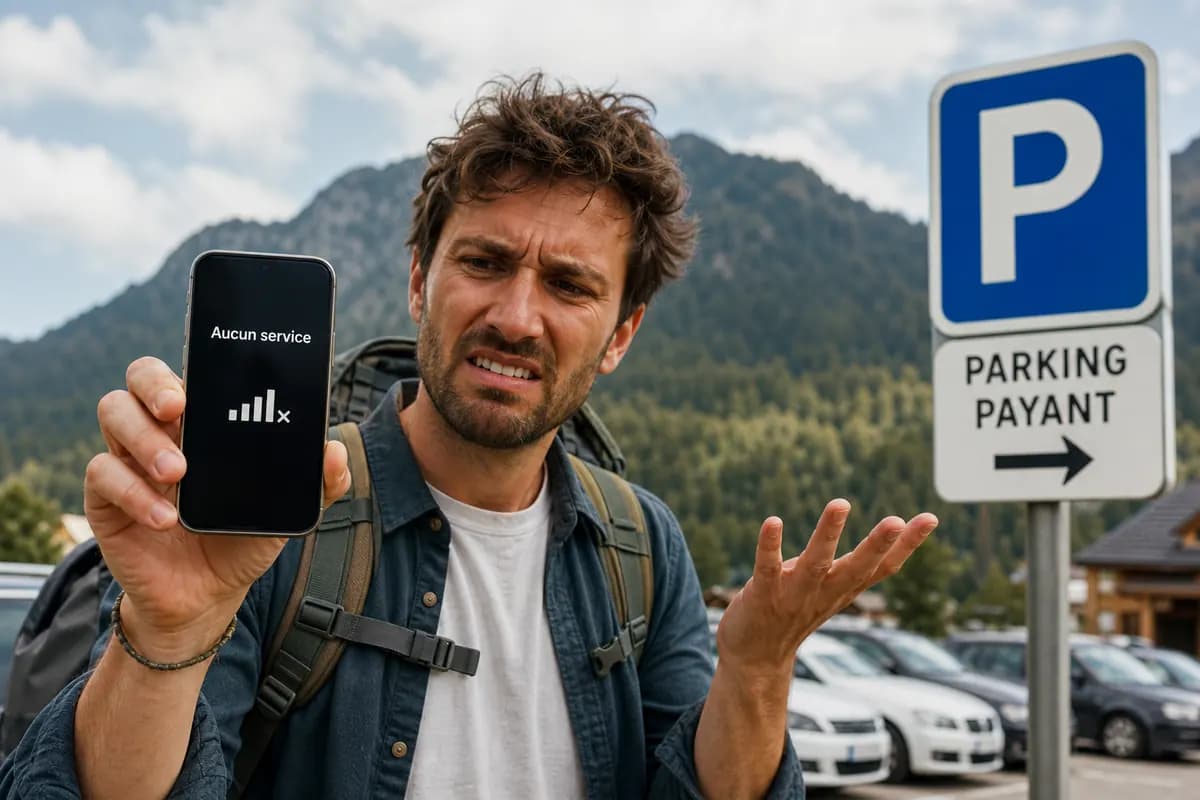
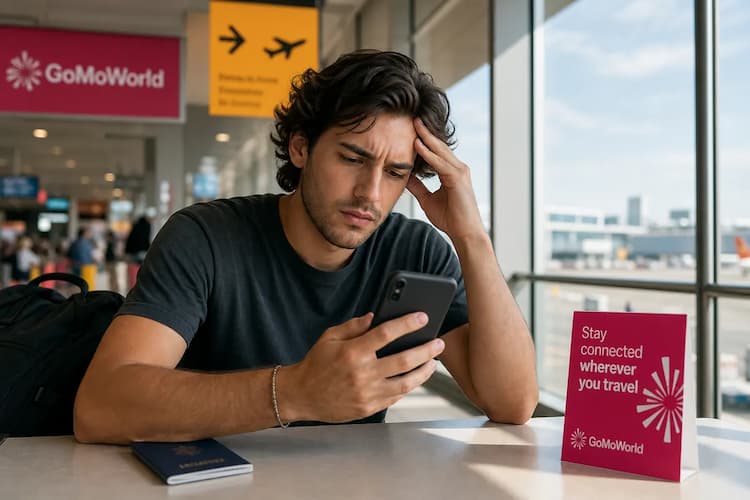
You land in Barcelona. You turn off airplane mode. Your screen says "No Service". You cannot check Google Maps, hail an Uber, or message your hotel.
AT&T and Verizon charge up to $15/day for international roaming. Even when you pay this premium, the connection often fails. You waste your first vacation hour restarting your phone. The bill arrives three weeks later.
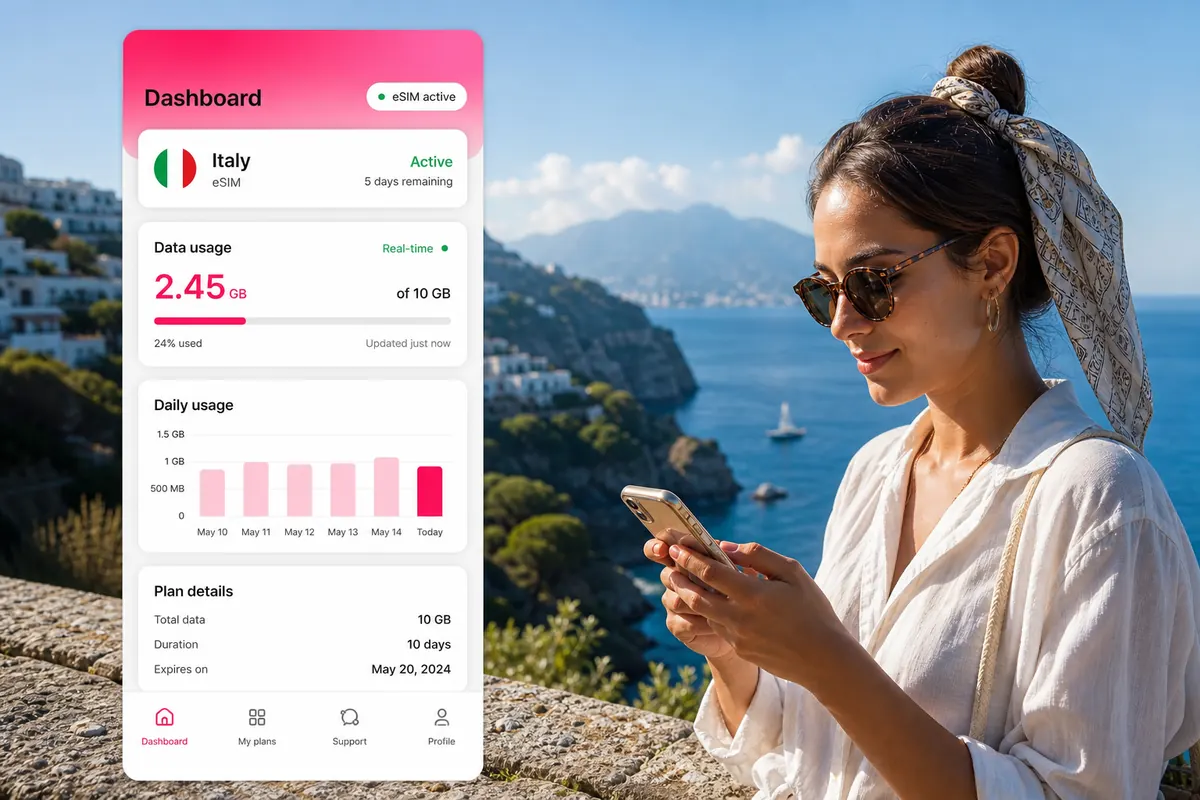
GoMoWorld fixes this instantly. You download the app. You buy a data plan tailored to your destination. You tap "Start". You get data immediately. No roaming fees. No network drops.
Why This Problem Happens
Your phone relies on roaming agreements between your home carrier and foreign networks. If these digital handshakes fail, you lose your signal. Network problems stem from specific technical blocks.
Roaming Settings Are Disabled
Phones ship with data roaming turned off by default. Manufacturers do this to prevent surprise bills. If you cross a border without flipping this switch, your phone blocks all foreign cell towers. Your device physically sees the network but refuses to connect.
Carrier-Level Restrictions
Your home provider controls your SIM card. Many prepaid plans block international usage entirely. Mint Mobile or AT&T prepaid plans often require manual activation before your trip. Some carriers require a cash deposit for roaming. If your account lacks roaming permissions, the foreign network rejects your device.
Physical SIM Card Failure
Physical SIM cards degrade over time. Temperature changes during flights cause micro-fractures in the metal chip. Dust enters the SIM tray. If your phone cannot read the chip, you lose service. Learn more about physical SIM card failures and replacement options.
Incorrect APN Configuration
The Access Point Name (APN) tells your phone how to connect to the mobile internet. It acts as a gateway address. Foreign networks sometimes require different APN settings. If your phone keeps your domestic APN, the foreign tower denies internet access.
Network Congestion and Prioritization
Tourist hotspots overload local cell towers. When a tower reaches capacity, it kicks off low-priority users. As a roaming user, you have the lowest priority. Local subscribers get the bandwidth. Your phone drops to 3G or loses service entirely.
3G Network Shutdowns
Carriers worldwide are shutting down 3G networks. If your phone lacks Voice over LTE (VoLTE) roaming support, it cannot connect to modern 4G/5G networks for calls. This forces your phone into a continuous search loop. The battery drains. The screen shows zero bars.
Quick Fix (Solves 80% of Cases)
Do not panic. Most network drops require a simple settings reset. Follow these exact steps to force a new connection.
Step 1: The Airplane Mode Cycle
Your phone might be stuck trying to connect to a weak tower miles away. You must force a modem restart.
- Swipe down to open the Control Center.
- Tap the Airplane Mode icon.
- Wait exactly 30 seconds. Do not rush this.
- Tap the icon again to turn it off. This process clears the modem cache. Your phone scans the area for the strongest local signal.
Step 2: Enable Data Roaming
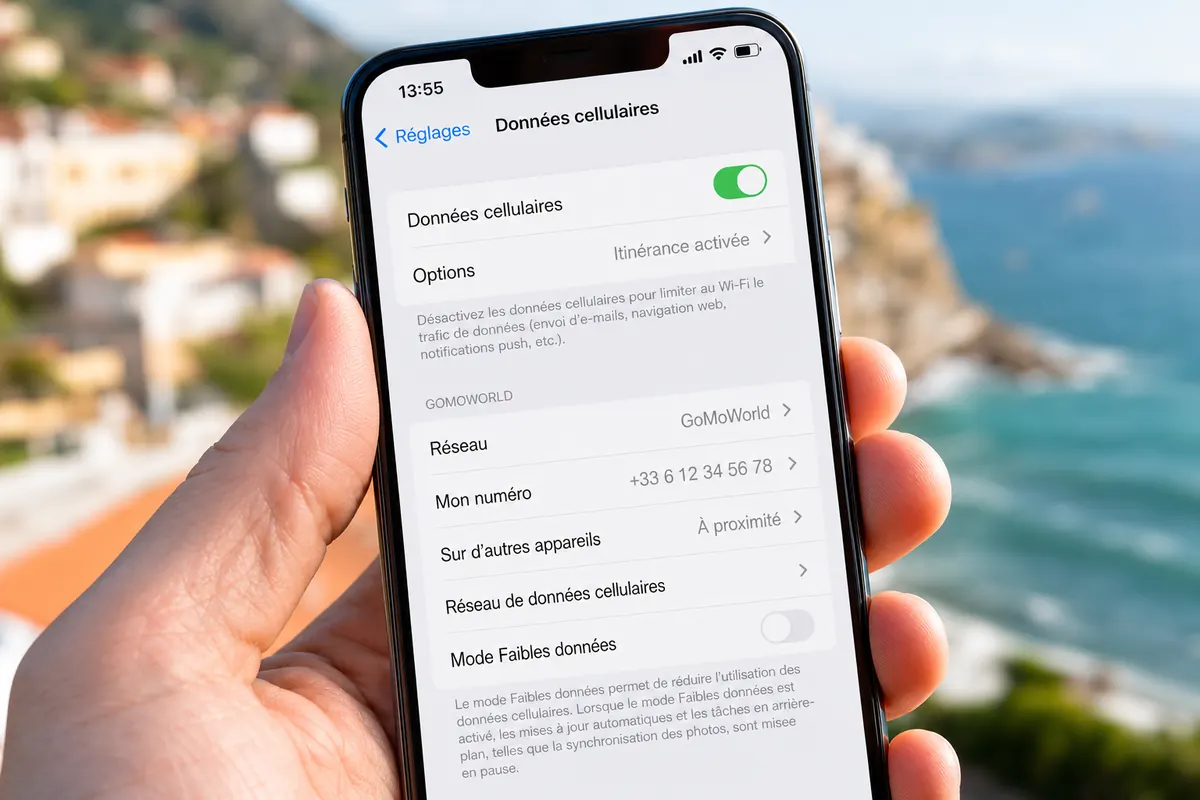
You must give your phone permission to use foreign data. On iPhone:
- Open Settings.
- Tap Cellular.
- Tap Cellular Data Options.
- Toggle "Data Roaming" to the ON position.
On Android:
- Open Settings.
- Tap Network & Internet.
- Tap Mobile Network.
- Toggle "Roaming" to the ON position.
Step 3: Force a Manual Network Search
Phones auto-select networks. Sometimes they pick a broken partner network. You can override this. On iPhone:
- Go to Settings > Cellular > Network Selection.
- Turn off "Automatic".
- Wait 60 seconds for the list to populate.
- Tap a different carrier from the list.
On Android:
- Go to Settings > Network & Internet > Mobile Network.
- Turn off "Automatically select network".
- Wait for the scan to finish.
- Pick a local provider manually (e.g., Vodafone, O2, Orange).
If your screen still shows an error, you might face a deeper iOS issue. Discover why your iPhone shows SOS only while traveling and how to resolve it.
Advanced Solutions
If the quick fixes fail, you have a software conflict. Dig into your system settings to clear the blockage.
Fix 1: Check Your APN Settings
An invalid APN blocks all data traffic. You might have phone signal, but no internet.
- Connect to hotel Wi-Fi.
- Search for your carrier's international APN settings.
- On iPhone: Go to Settings > Cellular > Cellular Data Network.
- On Android: Go to Settings > Network & Internet > Mobile Network > Access Point Names.
- Enter the correct details. Learn exactly how to set up the APN on your phone for a perfect connection.
Fix 2: Reset Network Settings
This is the nuclear option for connectivity bugs. It erases saved Wi-Fi passwords and Bluetooth pairings. It also rebuilds your cellular configuration from scratch. On iPhone:
- Go to Settings > General.
- Scroll to Transfer or Reset iPhone.
- Tap Reset.
- Tap Reset Network Settings.
- Enter your passcode.
On Android:
- Go to Settings > System.
- Tap Reset Options.
- Tap Reset Wi-Fi, mobile & Bluetooth.
- Confirm the reset. Reboot your phone immediately after doing this.
Fix 3: Disable VPNs and Custom DNS
Virtual Private Networks (VPNs) route your traffic through external servers. Custom DNS profiles do the same for web requests. Foreign networks often block these encrypted tunnels for security reasons.
- Open your VPN app (NordVPN, ExpressVPN, etc.).
- Disconnect the service.
- Go to Settings > General > VPN & Device Management (iOS).
- Delete any active profiles. Test your browser. If pages load, your VPN was the culprit.
Fix 4: Audit App Data Usage
Sometimes the network works perfectly. The problem is your apps. Background processes drain your bandwidth. Your phone feels offline because a cloud backup is consuming 100% of your data speed.
- Go to Settings > Cellular.
- Scroll down to see app data usage.
- Turn off cellular access for Photos, iCloud Drive, and Netflix.
- Disable background app refresh. Read our full breakdown on data apps abroad.
Fix 5: Clean the Physical SIM
If your phone says "No SIM", the hardware is failing.
- Turn off your phone.
- Use a paperclip to open the SIM tray.
- Remove the SIM card.
- Wipe the gold contacts with a clean, dry microfiber cloth.
- Blow into the SIM slot to remove dust.
- Reinsert the tray and power on.
Prevention
Stop relying on expensive, unreliable home carriers. Traditional roaming fails often. It also costs a fortune. Read our guide to international roaming fees and eSIM alternatives for 2026.
The absolute best prevention is a dedicated travel eSIM from GoMoWorld. You fix the network problem before you even reach the airport.
You keep your physical SIM active for calls and texts. You use GoMoWorld exclusively for data. This guarantees high-speed internet without carrier blocks.
The GoMoWorld Advantage
GoMoWorld operates differently from traditional carriers. We eliminate the friction of travel connectivity.
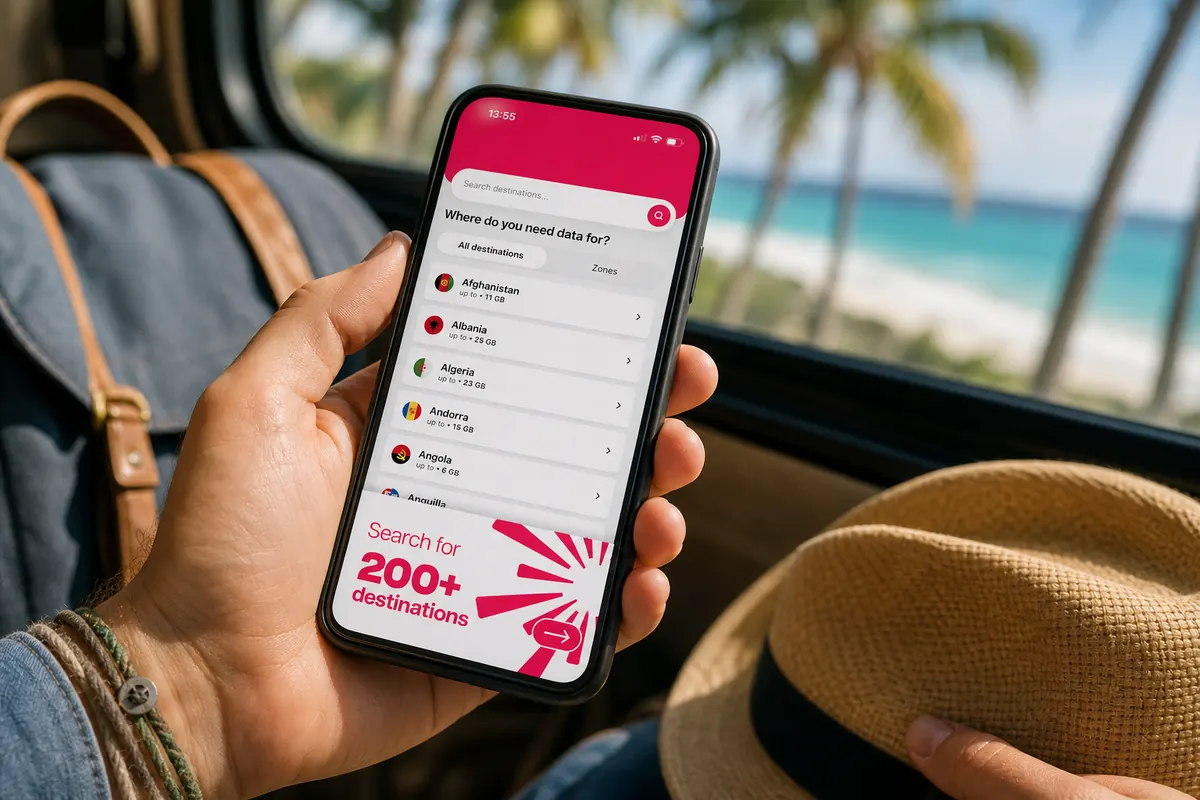
100% App-Based Installation No physical stores. No plastic cards. No QR codes to scan. You install the GoMoWorld app on your iPhone or Android. The app handles the entire eSIM setup securely.
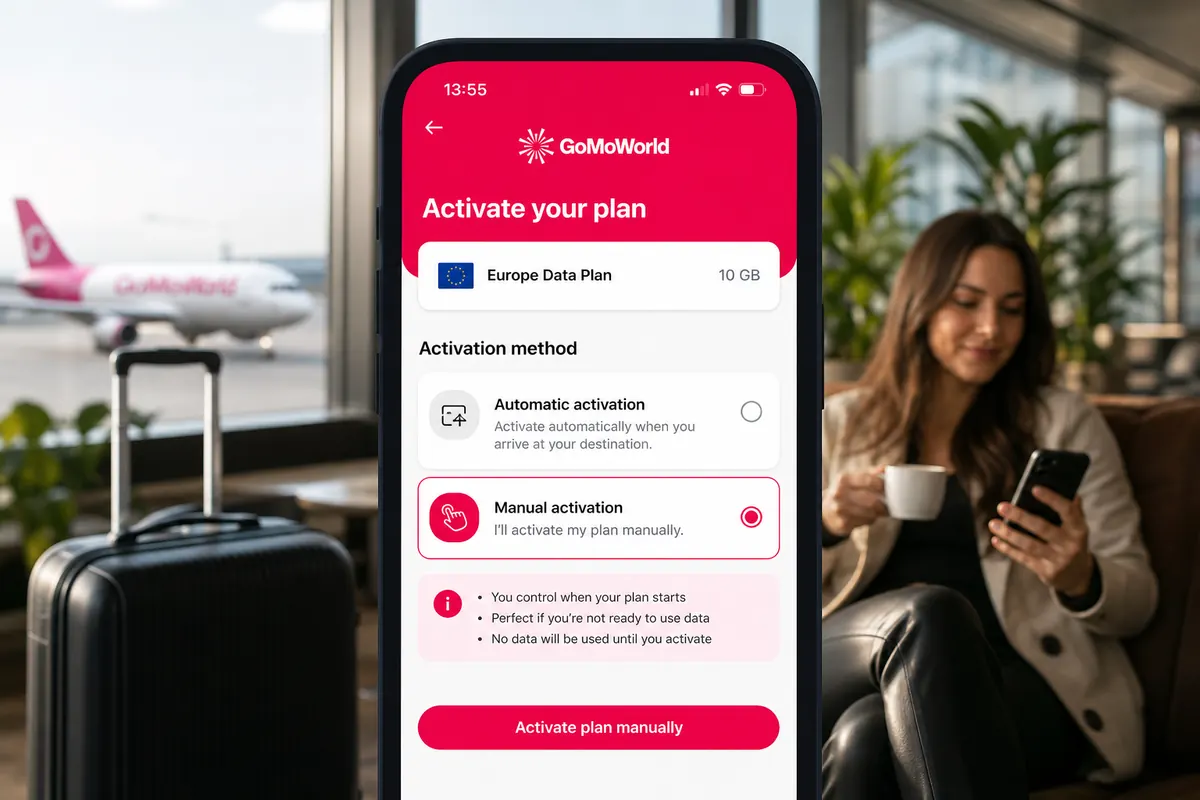
Manual Activation You buy your plan before your trip. When you land, you open the app and tap "Start". No auto-activation. No background data leaks. Your plan only starts when you explicitly tell it to.
No Expiration Dates Plans never expire until activated. Buy your data in January for a trip in July. The data waits for you.
Zero Overage Fees GoMoWorld uses a strict prepay system. You pay once. When your data runs out, the connection stops. You never receive a surprise bill. If you need more data, you buy another plan in the app.
Hotspot Included Share your connection. Every GoMoWorld plan includes hotspot tethering. Connect your laptop, tablet, or travel partner's phone at no extra cost.
Transparent Pricing
GoMoWorld offers three fixed durations worldwide. The data volume varies by destination, but the price remains constant.
- 7 days → €3.99
- 15 days → €10.99
- 30 days → €19.99
For this specific destination, you get 3GB for 7 days, 10GB for 15 days, or 25GB for 30 days. All plans connect to premium 4G and 5G local networks.
Carrier Comparison
| Carrier | Roaming Plan | Estimated Price |
|---|---|---|
| AT&T | International Day Pass | ~$15/day |
| T-Mobile | International Pass | ~$15/day |
| Verizon | TravelPass | ~$10/day |
| GoMoWorld eSIM | 15 days, data tailored | €10.99 |
Stop fighting with your carrier settings. Get a dedicated data line that actually works. eSIM →
Related guides
A network that keeps dropping abroad can come from your settings, an authentication error or a locked handset. Our guides to dig into each cause:
- Fix the connection: no network available abroad, turn off roaming on Android, turn off roaming on iPhone, reset your network settings, airplane mode with calls and texts and low data mode
- PDP authentication errors: cannot activate the cellular network, PDP authentication failure, the PDP authentication error on iPhone and what "PDP authentication failure" means
- Check your phone: see if a network lock is active and check whether your phone is unlocked
FAQ
Why do my mobile data not work abroad?
Your data roaming setting is likely disabled. Carriers turn this off by default to prevent unexpected charges. You must manually enable it in your cellular settings to access foreign networks.
How do I activate international roaming?
Go to your phone settings. On iOS, navigate to Cellular Data Options and toggle Data Roaming. On Android, find Mobile Networks and switch Roaming on. Ensure your carrier allows roaming on your specific account.
Why does my phone say no service in another country?
Your home carrier might lack a roaming agreement with the local network. Alternatively, your phone is failing to auto-select a valid tower. Switch your network selection from automatic to manual and pick a local provider.
Does airplane mode fix network issues?
Yes. Toggling airplane mode on for 30 seconds and then off forces your phone's modem to restart. This clears minor connection errors and forces your device to connect to the strongest local cell tower.
Do I need to change my APN settings abroad?
Sometimes. If you have full signal bars but no internet access, your phone is using the wrong gateway. You must update your Access Point Name (APN) to match the local network requirements.


Similar articles
SM-DP+ Address: Complete Troubleshooting Guide
WhatsApp While Traveling: Free or Paid? How to Use It
Data Apps Abroad: Comprehensive Troubleshooting Guide
No SIM Available: Causes and Solutions

Hear from our Happy Travelers
4.7
App Store

4.7
Google Play Store

March 5, 2026
Trustworthy and cheap
A trustworthy and economic way of being in contact with home when travelling


February 27, 2026
Excellent esim
Easy to use. Used in many countries and will continue to use gomoworld


February 26, 2026
Best eSIM prices
Excellent price and good network coverage. Used it for my trips to Turkey and Russia, I faced no issues at all. Recommend!


February 10, 2026
Great eSIM service
I use their esim and I have used them all over India, Colombia, Nicaragua and the US and have not had problems with connection, except high in the mountains where no one has it.

February 7, 2026
Works flawlessly from 1st second
Installing and activating is straightforward, testing the system with a free trial in Switzerland worked fine Connection throughout the Gambia was perfect Renewal after expiration was easy, cheap and quick.


January 25, 2026
Really good data plans withs reasonable prices
GoMoWorld offered the best value out of all the options I considered. The app experience was also superior to other services I’ve tried. There was no ID verification requirement. Payment and setup was super easy. It guides you step by step how to install the eSIM and tells you the recommended settings. I would recommend to anyone looking for lots of data with really competitive prices.

What is an eSIM?
We’ll Explain Everything.
A simple, digital solution for staying connected wherever you Go.

Say Goodbye to Physical SIM Cards
No need to handle a physical SIM card (or risk losing yours)—everything is digital with an eSIM.

Quick and Easy Activation.
Download your GoMoWorld eSIM from our app and get connected in minutes. All our plans start at just €3.99, with no subscriptions or hidden fees.

Perfect for Travelers
Keep your regular SIM active for calls and texts while using GoMoWorld for data. You can have both your primary SIM and eSIM active simultaneously, or two eSIMs.


from
€3.99

Still thinking about it?
Download the app and enjoy a risk-free Trial. Experience GoMoWorld travel eSIM now!